SafestHires: Viewing Reports
Viewing SafestHires reports and other homepage widgets explained.
Summary
A tour of the SafestHires home page and how to read completed reports. The Checked Individuals list shows recent orders with color-coded status tags, and each report can be opened as an online HTML view or downloaded as a color PDF. The video also covers the Announcements and HR Education widgets on the dashboard.
What this video covers
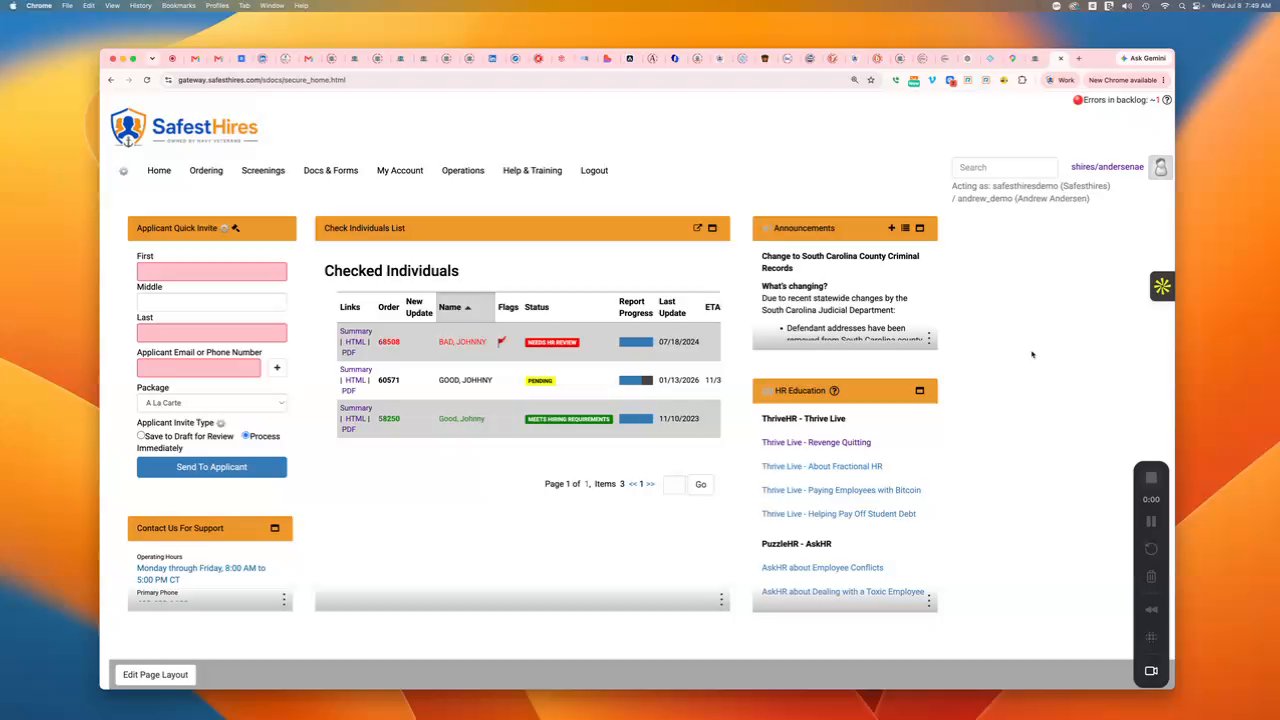
- The Checked Individuals list shows recently placed orders and their current status.
- Green "Meets hiring requirements" means the report is complete with nothing derogatory; a red flag with "Needs HR review" means the report contains derogatory information; yellow "Pending" means the check is still processing.
- A progress indicator on the right shows roughly how far along an in-progress background check is.
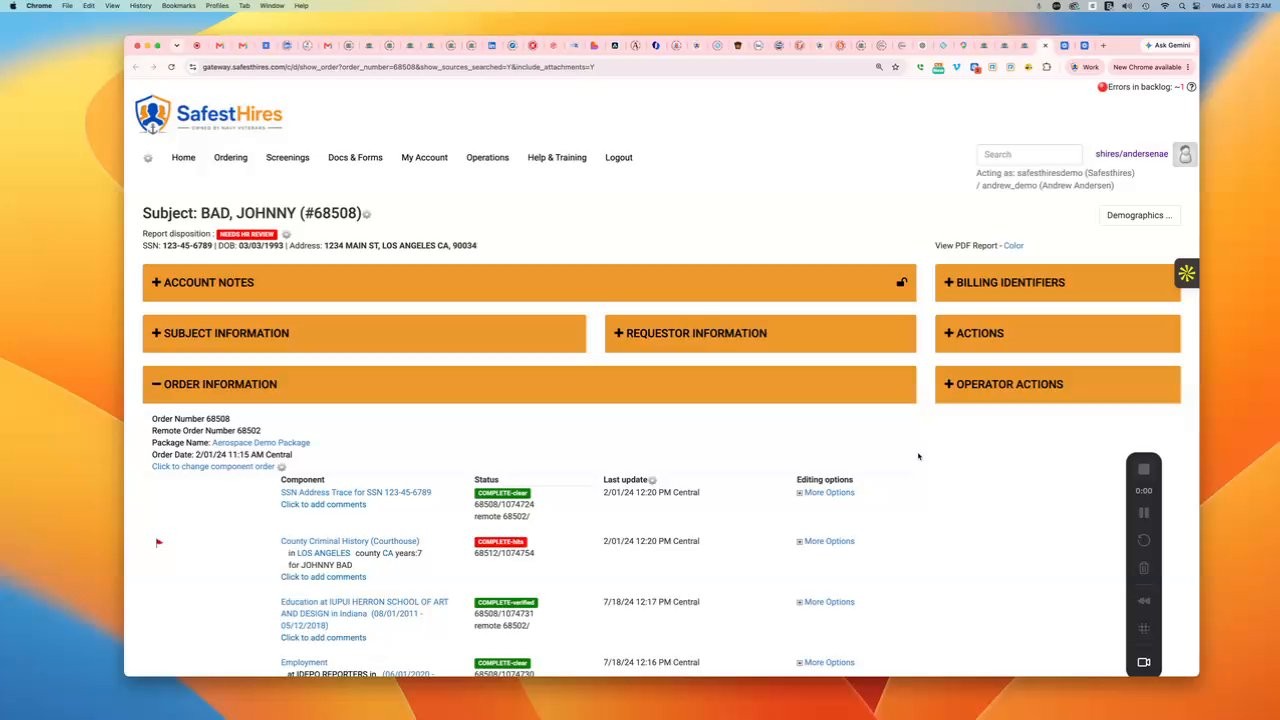
- Click the HTML link to open the online report, view every search in the package, and expand any search for detail.
- Use the View PDF Report link in the top right to generate and download a color PDF of the report.
- The Announcements widget posts courthouse delays, regulatory changes, and holiday closures; the HR Education widget links to partner HR consultant videos.
Full transcript
Machine transcript of the video above, lightly edited for readability.
Welcome to the SafestHires platform. In this video, we are going to cover some other elements of the SafestHires home page. So, in this middle section, we have the checked individuals list. This is where your recently placed orders are going to appear, and you are able to quickly verify the status of those orders.
So, you can see here that when an order has been placed, and it's completed, and everything is okay, then you'll have a green status tag that says, meets hiring requirements. If you've placed an order, and it's complete, and there's something derogatory on the report, you'll get this red waving flag. with a status tag that says, needs HR review. And if you have placed an order that is not yet complete, it's still processing, the status tag will be yellow, and it will say, pending.
And if you look off to the right, you can see, a visual indicator showing approximately how far along the background check is, before it gets completed. If you want to view, a more detailed picture of the background check report, you can come to the left and click this HTML link, and that is going to take you to the online version of the report, where you can see all the searches in that package and their status. Here it's showing that all of the searches are complete and clear. If you want a more detailed view, you can scroll down and click any one of these searches to view detailed information about that search.
And then up here in the top right, there's a link that says View PDF Report Color. And if you click on that color link. It will generate and download a PDF version of the report to your desktop, and then you can do whatever you like with the PDF of that report. So now I'm going to take you back to the home screen.
A couple of other things here on the home screen. We have an announcements widget where we're going to be posting information about courthouse delays, regulatory changes, you know, holiday closures, things of that nature. And then down below, we have a widget called HR education, where we have links to some YouTube videos that have been produced by some HR consultants that we partner with covering various topics. educational topics for HR.
And that is, the information that we wanted to share regarding the homepage.