SafestHires: Adding a search to existing order
Steps to follow to add a search to an existing order.
Summary
How to add another search to an order that has already been placed. From the Checked Individuals list, open the report's HTML link, choose Actions > Add to this order, pick the additional search from the a la carte menu, and submit — the candidate's information is carried over automatically.
What this video covers
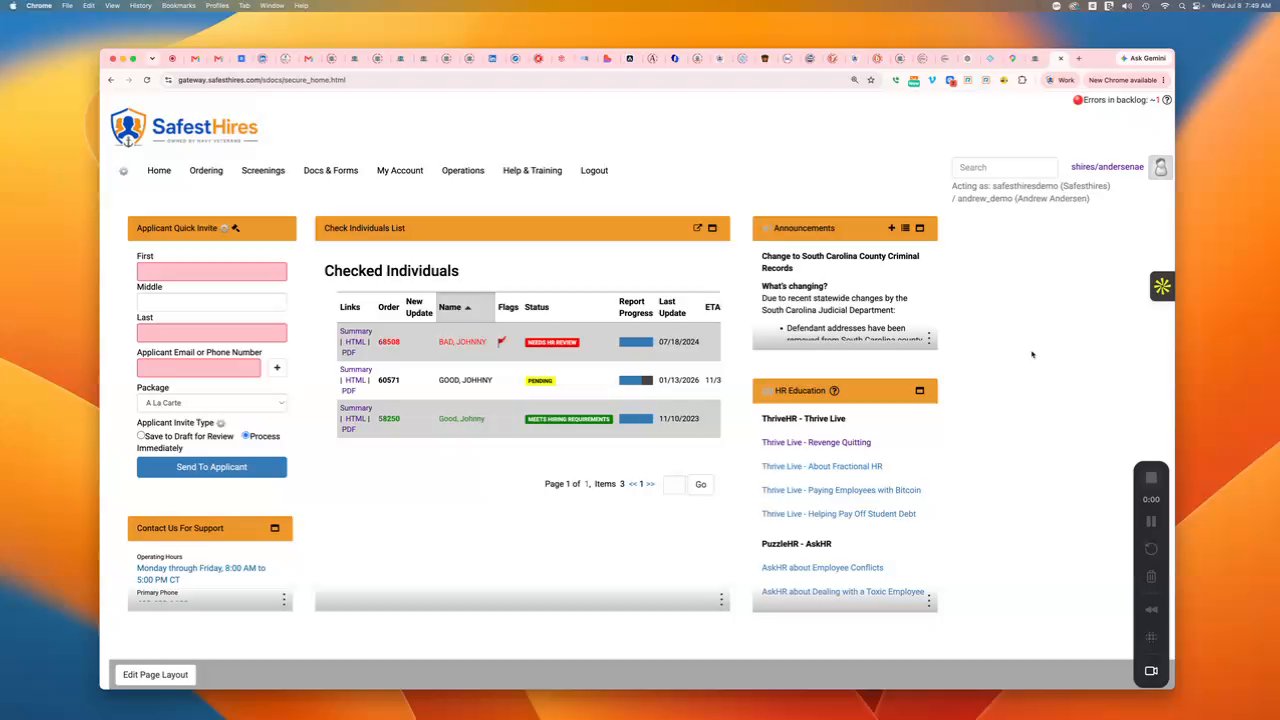
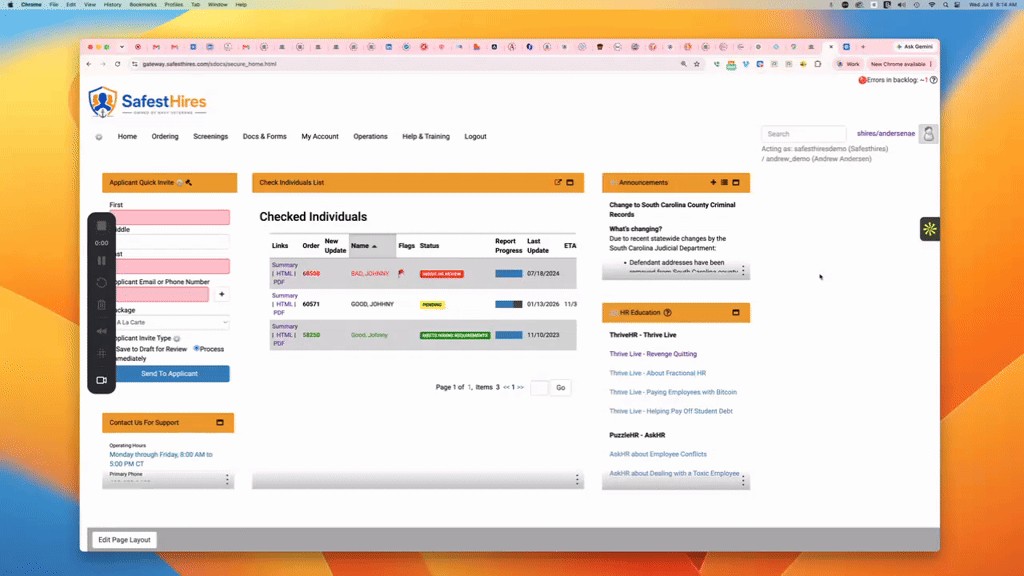
- Start in the Checked Individuals section and open the HTML link for the report you want to change.
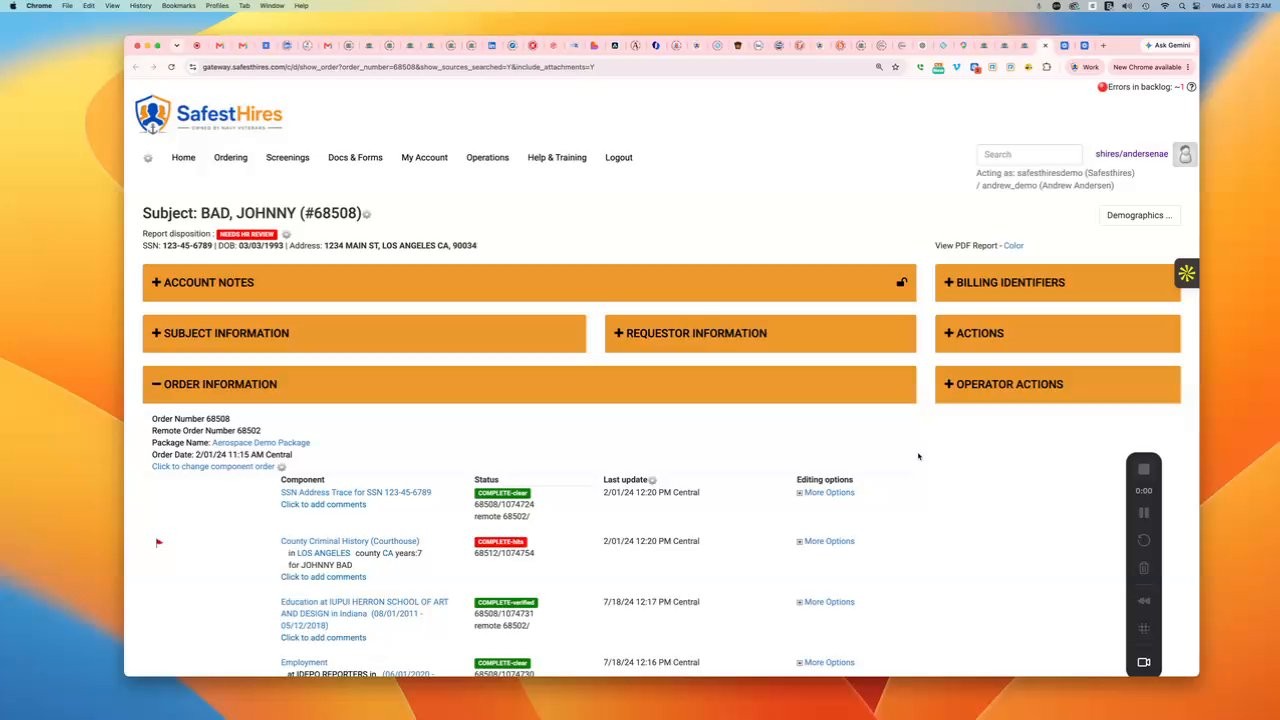
- Select Actions, then click Add to this order.
- The default a la carte menu lists the searches you can add, such as a social media search.
- Applicant information is pre-filled, so you only need to confirm the checkbox at the bottom and continue.
- Click Submit Now on the verification screen to attach the new search to the original order.
Full transcript
Machine transcript of the video above, lightly edited for readability.
Welcome to the SafestHires platform. In this video, we are going to quickly show how to add a search to an existing order. So, here we are in the checked individual section. Here in the middle, and you're going to go to the HTML link for the report that you wish to add an order to.
And then over here to the right, you're going to select actions. And then you're going to click this link that says add to this order. And then you'll close this pop-up. And then here you are on the order page, and the default menu is the a la carte menu.
And so, if you wanted to add any of the searches that are visible here, let's just select social media search. And then you would continue to the next step. All the applicant's information is pre-filled out, so you can actually add it. Come down to the very bottom, check this box, and then continue to verify the order.
And then on this screen, you would click this blue button that says Submit Now, and that would add a social media search. Report to the order that you had originally placed. Thank you.